
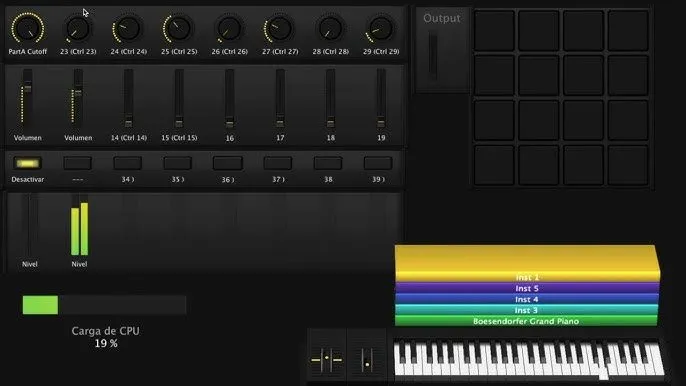
How to Optimize Your Mac for Smooth Live Performances with MainStage
Nothing strikes more fear into a keyboardist than being in the middle of a profound moment of worship and hearing a "pop," a "click," or—even worse—the sound cutting out completely.
Over the years, I've seen many musicians get frustrated, thinking that their Mac is "no longer any good" or that they need to spend thousands of dollars on a new one, when in reality, most of these problems can be solved by configuring the software properly.
Here are my top tips for securing your Mac before walking down the aisle.
1. Buffer size is your best friend
The Buffer Size (Buffer size) determines how fast your Mac processes sound.
- If the number is very low (e.g., 32 or 64), you'll experience almost no latency or delay when pressing the keys, but your processor will be working at full capacity, and that's when stuttering occurs.
- The solution: For live performances, a buffer of 128 o 256 samples It's the perfect balance. It's fast enough that you don't feel any lag in your fingertips, and it gives your Mac the breathing room it needs to process large piano sounds or heavy pads.
2. Turn off Wi-Fi and Bluetooth
Your Mac is constantly scanning for new networks and trying to sync emails and notifications in the background. That small process, which takes place in a fraction of a second, can cause a spike in MainStage's CPU usage. Get in the habit of turning off Wi-Fi and Bluetooth whenever you're going to play a live show.
3. Close EVERYTHING else
It seems obvious, but it happens often. You don't need to have Google Chrome, Spotify, or WhatsApp open while you're playing. Those apps use up a lot of RAM—which your Kontakt pianos desperately need. Give MainStage or your DAW full priority by completely closing any other apps.
4. Keep some free space on your hard drive
MainStage and plugins like Kontakt read audio samples directly from your hard drive while you play. If your hard drive is 99% full, it will have a very hard time finding and loading those sounds in time. Try to keep at least 15% or 20% free space on your Mac to let the system "breathe."
5. Turn off automatic updates
You don't want your Mac to decide that the chorus of the last song is the perfect time to start downloading the new version of the operating system. Go to "System Preferences" and turn off automatic downloads to maintain full control over your computer.
In conclusion: Taking care of your Mac's settings is just as important as rehearsing the songs. By making these small changes, you'll ensure that technology works for you rather than holding you back, allowing you to focus on the only thing that matters: leading worship with excellence.
💬 ¿Tienes dudas o quieres dar las gracias?
Únete a nuestro Grupo de Telegram